Free VPS for Life: 4 ARM Cores, 24 GB RAM, 200 GB NVMe SSD (Oracle Cloud)
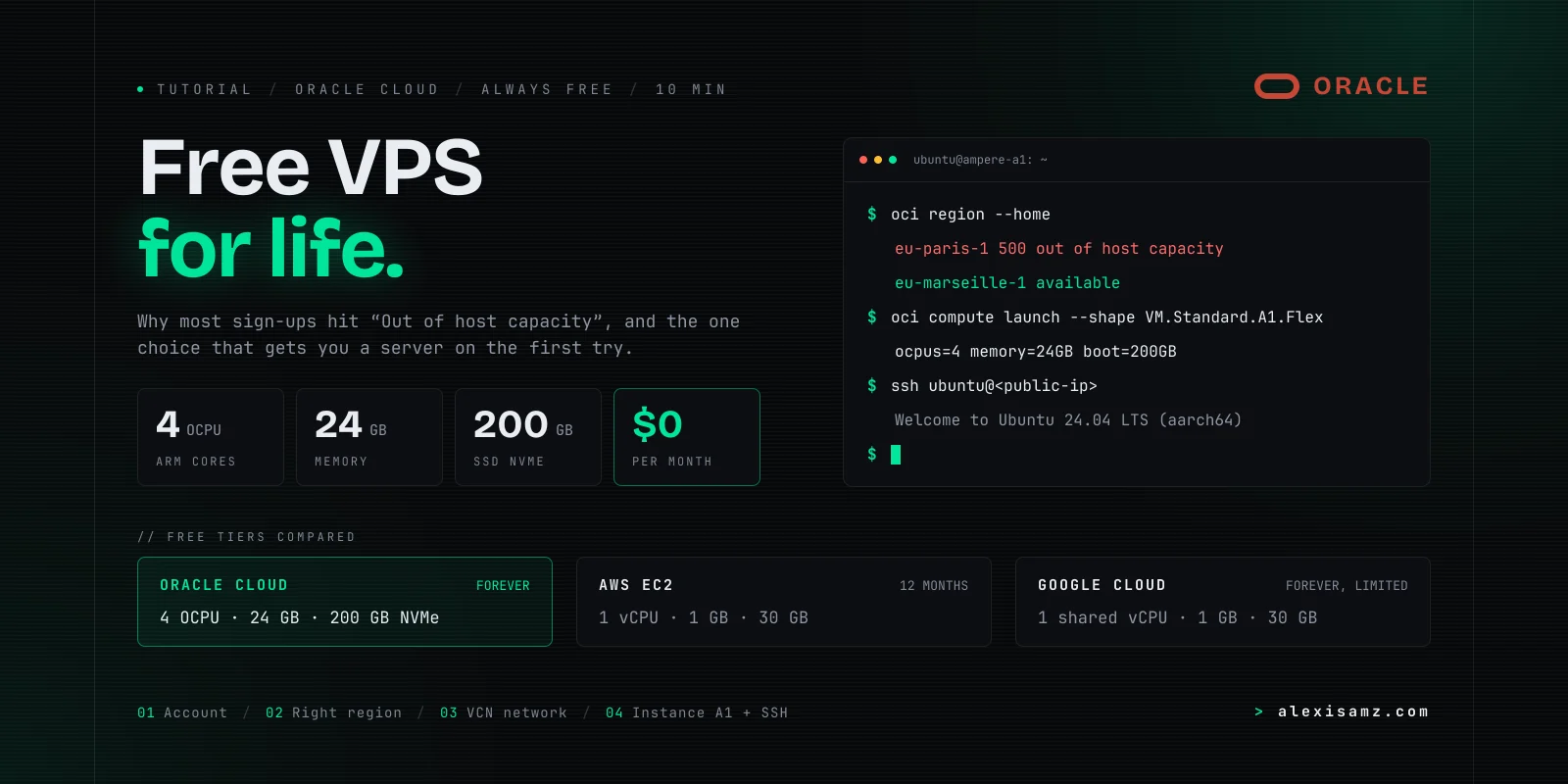
How to claim a truly free lifetime VPS on Oracle Cloud Always Free: 4 OCPU ARM, 24 GB RAM, 200 GB SSD, the regional capacity trap, and automated setup.
Your AI agent does the setup for you, on your machine.
Do this setup on my machine by following this runbook: https://alexisamz.com/agents/oracle-vps-gratuit.md

Read it fully before acting. Ask me for my API key when you need it and never print it in clear. Ask for confirmation before changing an existing config file.
At a glance
• What you get: A dedicated cloud VPS server, free forever, with 4 OCPU (Ampere A1 ARM cores), 24 GB RAM, 200 GB NVMe SSD, and a dedicated public IPv4 address. • The only real trap: the region you pick at sign-up. If it is saturated, you hit
Out of host capacity. • The fix: choose your region well, and use a script that retries on its own when it is full. • Real cost: $0 / month with no hidden fees. • Setup time: About 10 minutes.
When a cloud provider advertises a "free tier," it usually means a shared 512 MB sandbox with strict throttling and a forced expiration date after 12 months.
Oracle Cloud is a notable exception with its Always Free tier: you can deploy up to 4 Ampere A1 ARM cores, 24 GB of RAM, and 200 GB of NVMe SSD storage at zero cost, permanently.
However, almost everyone encounters the infamous 500: Out of host capacity error.
This guide explains where that block comes from, how to avoid it, and how to get your server step by step, on macOS, Linux or Windows.
Why Oracle Always Free beats AWS and Google Cloud
| Provider | CPU | RAM | Storage | Duration | |---|---|---|---|---| | Oracle Cloud | 4 OCPU ARM | 24 GB | 200 GB NVMe | Free forever (Always Free) | | AWS (EC2) | 1 vCPU | 1 GB | 30 GB | 12 months trial only | | Google Cloud | 1 shared vCPU | 1 GB | 30 GB | Severe throttling | | DigitalOcean / Hetzner | No free plan | - | - | Paid from day one |
With 4 ARM64 cores and 24 GB of RAM, this tier delivers performance usually billed at $50 to $80 per month on modern hosting platforms.
Ideal workloads:
- Autonomous AI agents (Hermes, OpenCode, Claude Code headless daemons)
- Docker containers, self-hosted Supabase, n8n, and PostgreSQL
- Private GitHub Actions CI/CD runners
- Node.js, Next.js, Python, and Go microservices
The only real trap: your region
Almost every failure comes from the same error: 500: Out of host capacity. It does not mean your account is broken. It means the region you picked has no free ARM server available right now.
Two Oracle rules make this choice matter:
- On a free account, the Home Region you pick at sign-up is permanent. You cannot change it later.
- Always Free resources exist only in that Home Region.
How to choose well:
- Pick a region close to you (latency matters for a server you will use every day).
- Avoid the most popular regions in your area when possible: those are the saturated ones. A smaller region in the same or a neighboring country often has capacity right away.
- In France: pick Marseille (France South), not Paris. In Paris, getting a free ARM machine is practically impossible.
What happened to me: I first created my account in Paris, like most people. I wrote a script that retried the launch every two to three minutes and left it running all night: not a single machine available,
Out of host capacityevery time. I created a new account with Marseille as Home Region, and the 4 core / 24 GB server came up right away, on the first try. If you are in France, don't repeat my mistake: choose Marseille at sign-up.
- Availability changes over time: no region is guaranteed free, none is permanently blocked.
Already stuck in a busy region? Don't panic. The step 4 script first asks for the biggest free machine (4 cores, 24 GB), then smaller ones (2 / 12, then 1 / 6) if the region has no room, and retries every 85 seconds until it gets one. It may take a few hours, but it gets there.
Before you start
You need:
- a computer running macOS, Linux or Windows (Windows 10 or 11: use PowerShell,
sshandssh-keygenare already installed); - Python 3 (
python3 --versionon macOS/Linux,py --versionon Windows); - a credit card for identity verification;
- about ten minutes, plus waiting time if your region is full.
Prefer to be guided? The Send to an agent button at the top of the page hands this guide to your AI agent (Claude Code, Cursor, OpenCode). It asks you one question at a time (your system, your account, your region), then offers to either run the script for you or prepare it so you run it yourself.
Step 1: Create your Oracle Cloud account
- Go to Oracle Cloud Free Tier and click Start for free.
- Enter your country, name and email.
- Choose your Home Region. If you are in France: France South (Marseille), not Paris. Otherwise, follow the advice above. This choice is permanent: if you get it wrong, you will have to create a new account.
- Add your card. Oracle places a temporary authorization to check you are a real person, then releases it. As long as you stay within Always Free limits, nothing is charged.
- Wait for the confirmation email (a few minutes, sometimes up to an hour), then log in to the console.
Check: you see the Oracle Cloud console, and your region is shown top right.
Step 2: Create an API key
This key lets the script create the server for you.
- In the console, click the profile icon top right, then My profile (or User settings).
- Bottom left, under Resources, click API keys, then Add API key.
- Keep Generate API key pair selected, click Download private key (a
.pemfile downloads), then Add. - Oracle shows a configuration preview (
user,fingerprint,tenancy,region). Keep that window open or copy the text.
Check: you have a .pem file in your Downloads folder and the configuration block copied.
Step 3: Prepare your computer
1. Store the key. On macOS or Linux:
mkdir -p ~/.oci && chmod 700 ~/.oci
mv ~/Downloads/*.pem ~/.oci/oci_api_key.pem
chmod 600 ~/.oci/oci_api_key.pem
On Windows (PowerShell):
New-Item -ItemType Directory -Force "$HOME\.oci"
Move-Item "$HOME\Downloads\*.pem" "$HOME\.oci\oci_api_key.pem"
2. Create ~/.oci/config (Windows: C:\Users\your_name\.oci\config). Paste the preview from step 2 and add the key_file line with the full path to your key:
[DEFAULT]
user=ocid1.user.oc1..xxxx
fingerprint=xx:xx:xx:...
tenancy=ocid1.tenancy.oc1..xxxx
region=your-region          # copied as is from the preview
key_file=/full/path/to/.oci/oci_api_key.pem
3. Have an SSH key. Check whether you already have one (ls ~/.ssh/*.pub). Otherwise:
ssh-keygen -t ed25519 -C "oracle-vps"
Press Enter at each question to keep the defaults.
4. Install the Oracle SDK and test the connection:
python3 -m pip install --user oci
python3 -c "import oci; c=oci.config.from_file(); print(oci.identity.IdentityClient(c).get_user(c['user']).data.name)"
Check: the last command prints your Oracle user name. A NotAuthenticated error means the fingerprint or the key_file path is wrong.
Step 4: Create the network and the server
One script does everything: virtual network, Internet access, Ubuntu 24.04 ARM server, then prints the connection command. It tries the maximum config first (4 cores, 24 GB), then 2 / 12, then 1 / 6. It is safe to run again: it reuses what already exists.
Save it as oracle_vps.py, then run python3 oracle_vps.py:
import os, sys, time
import oci

# Biggest Always Free config first, then smaller ones if the region has no room
SHAPES = [(4.0, 24.0), (2.0, 12.0), (1.0, 6.0)]
BOOT_GB = 200
NAME = "vps-arm-free"
RETRY_SECONDS = 85  # below this, OCI answers 429 TooManyRequests

config = oci.config.from_file("~/.oci/config")
tenancy = config["tenancy"]
network = oci.core.VirtualNetworkClient(config)
compute = oci.core.ComputeClient(config)
identity = oci.identity.IdentityClient(config)
M = oci.core.models

# SSH public key: ed25519 first, then rsa
pub = next((os.path.expanduser(p) for p in ("~/.ssh/id_ed25519.pub", "~/.ssh/id_rsa.pub")
            if os.path.exists(os.path.expanduser(p))), None)
if not pub:
    sys.exit("No SSH public key found: run ssh-keygen first (step 3).")
ssh_key = open(pub).read().strip()

# --- Network: VCN + Internet Gateway + route + public subnet
vcns = network.list_vcns(tenancy).data
vcn = vcns[0] if vcns else network.create_vcn(M.CreateVcnDetails(
    cidr_block="10.0.0.0/16", display_name="VCN-ALWAYS-FREE", compartment_id=tenancy)).data
vcn = oci.wait_until(network, network.get_vcn(vcn.id), "lifecycle_state", "AVAILABLE").data

igws = network.list_internet_gateways(tenancy, vcn_id=vcn.id).data
igw = igws[0] if igws else network.create_internet_gateway(M.CreateInternetGatewayDetails(
    compartment_id=tenancy, vcn_id=vcn.id, is_enabled=True, display_name="IGW-ALWAYS-FREE")).data

rt = network.get_route_table(vcn.default_route_table_id).data
if not any(r.destination == "0.0.0.0/0" for r in rt.route_rules):
    network.update_route_table(rt.id, M.UpdateRouteTableDetails(route_rules=rt.route_rules + [
        M.RouteRule(destination="0.0.0.0/0", destination_type="CIDR_BLOCK", network_entity_id=igw.id)]))

subnets = [s for s in network.list_subnets(tenancy, vcn_id=vcn.id).data if not s.prohibit_public_ip_on_vnic]
subnet = subnets[0] if subnets else network.create_subnet(M.CreateSubnetDetails(
    compartment_id=tenancy, vcn_id=vcn.id, cidr_block="10.0.0.0/24", display_name="SUBNET-PUBLIC",
    route_table_id=vcn.default_route_table_id, security_list_ids=[vcn.default_security_list_id])).data
subnet = oci.wait_until(network, network.get_subnet(subnet.id), "lifecycle_state", "AVAILABLE").data

# --- Instance: reuse if it exists, otherwise launch with retry on capacity errors
existing = [i for i in compute.list_instances(tenancy, display_name=NAME).data
            if i.lifecycle_state not in ("TERMINATED", "TERMINATING")]
if existing:
    instance = existing[0]
else:
    images = compute.list_images(tenancy, operating_system="Canonical Ubuntu", operating_system_version="24.04",
                                 shape="VM.Standard.A1.Flex", sort_by="TIMECREATED", sort_order="DESC").data
    image_id = next(i.id for i in images if "Minimal" not in i.display_name)
    ads = [a.name for a in identity.list_availability_domains(tenancy).data]
    details = lambda ad, ocpus, mem: M.LaunchInstanceDetails(
        display_name=NAME, compartment_id=tenancy, availability_domain=ad, shape="VM.Standard.A1.Flex",
        shape_config=M.LaunchInstanceShapeConfigDetails(ocpus=ocpus, memory_in_gbs=mem),
        source_details=M.InstanceSourceViaImageDetails(image_id=image_id, boot_volume_size_in_gbs=BOOT_GB),
        create_vnic_details=M.CreateVnicDetails(subnet_id=subnet.id, assign_public_ip=True),
        metadata={"ssh_authorized_keys": ssh_key})
    instance, attempt = None, 0
    while instance is None:
        for ocpus, mem in SHAPES:
            for ad in ads:
                attempt += 1
                try:
                    instance = compute.launch_instance(details(ad, ocpus, mem)).data
                    print(f"Got {int(ocpus)} OCPU / {int(mem)} GB")
                    break
                except oci.exceptions.ServiceError as e:
                    if e.status == 500 and "capacity" in e.message.lower():
                        print(f"[{attempt}] {int(ocpus)} OCPU / {int(mem)} GB: out of host capacity")
                    elif e.status == 429:
                        print(f"[{attempt}] rate limited")
                    else:
                        raise
            if instance is not None:
                break
        if instance is None:
            time.sleep(RETRY_SECONDS)

print("Waiting for RUNNING...")
instance = oci.wait_until(compute, compute.get_instance(instance.id), "lifecycle_state", "RUNNING",
                          max_wait_seconds=900).data

# --- Public IP
vnic_id = compute.list_vnic_attachments(tenancy, instance_id=instance.id).data[0].vnic_id
ip = network.get_vnic(vnic_id).data.public_ip
key = pub[:-4]
print(f"ssh -i {key} ubuntu@{ip}")
What you will see:
- If your region has room: within a minute or two, the script prints
Got 4 OCPU / 24 GBand then anssh -i ... ubuntu@your_ipline. - If your region is full: lines saying
out of host capacity. That is expected. Let it run (on a machine that stays awake). If you only want the full machine, setSHAPES = [(4.0, 24.0)]. If you got a smaller one, you can resize it later from the console when capacity frees up.
Step 5: Connect and check
Copy the command printed by the script:
ssh -i ~/.ssh/id_ed25519 ubuntu@your_public_ip
Answer yes to Are you sure you want to continue connecting. Then check what you got:
uname -m && nproc && free -h && df -h /
Check: aarch64, 4, about 23 Gi of memory and about 190 GB of disk. Your server is ready.
Keep your machine active
Oracle may stop an Always Free instance it considers idle: when, over 7 days, CPU, network and memory all stay very low (under 20 %). The healthy fix is simple: run real services on it (Docker, a database, a bot, a CI runner, an AI agent). A machine that is used is not at risk.
Summary
- Choose your Home Region carefully: Marseille in France; elsewhere, a nearby region that is not the busiest one.
- Create your API key and your
~/.oci/configfile. - Run the script: it aims for 4 cores / 24 GB, steps down if needed, and retries on its own if the region is full.
- Connect over SSH.
If you want step-by-step guidance, use the Send to an agent button at the top of the page.
Website, photo shoot or video.
Let's talk.